 Archie Nair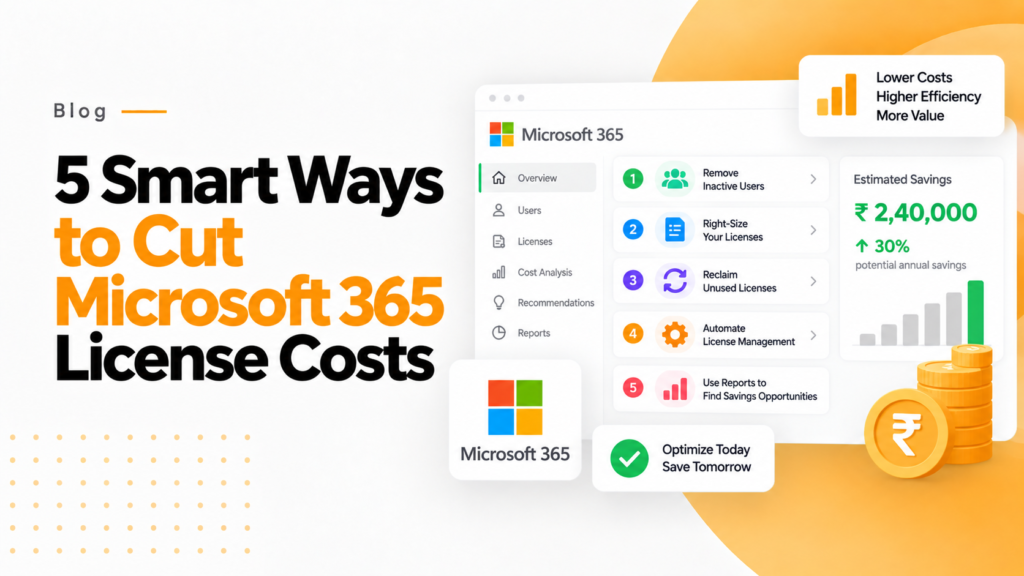
Key takeaways
- A tiered model maps each job function to a basic, standard or premium license and asks for a business reason before premium is granted.
- Automated offboarding removes a leaver’s licenses as soon as HR marks the change and can convert the mailbox to a shared mailbox first.
- Start by reclaiming licenses from inactive and departed users in the first 30 days, then add tiers, lifecycle automation and usage reviews.
Wasting Thousands on Unused Microsoft 365 Licenses? Here’s How to Stop the Bleed
Is your organization hemorrhaging money on Microsoft 365 licenses that nobody’s using? You’re not alone. Many organizations pay for Microsoft 365 licenses nobody uses because of inefficient license management, and that waste comes straight out of the IT budget.
In this guide, we’ll reveal five proven strategies that leading IT departments use to reclaim wasted license spending, optimize their Microsoft 365 environment, and deliver significant cost savings to their organization. You’ll learn actionable techniques for identifying unused licenses, implementing right-sizing strategies, and establishing sustainable management practices that keep costs under control.
By the end of this article, you’ll have a clear roadmap for transforming your Microsoft 365 license management from a budget drain to a strategic asset.
Why Your Current License Management Approach Might Be Costing You
Before diving into our cost-saving strategies, let’s understand why Microsoft 365 license management is so challenging for many organizations. As a platform that’s grown to encompass over 25 applications and numerous service plans, Microsoft 365 has become increasingly complex to manage efficiently.
Three critical factors consistently contribute to unnecessary license expenses:
- Lack of visibility: Without proper reporting tools, IT administrators struggle to identify which licenses are actually being used and which are sitting idle.
- Reactive provisioning: Many organizations follow a “just-in-case” approach to licensing, assigning premium licenses to users who may only need basic functionality.
- Incomplete offboarding processes: When employees leave or change roles, their licenses often remain assigned, creating an ever-growing pool of wasted resources.
Tip #1: Conduct a Thorough License Utilization Audit
The foundation of any cost optimization strategy is understanding exactly what you’re currently using. A comprehensive license audit reveals immediate saving opportunities and establishes your baseline for measuring improvements.
Tools that find unused Microsoft 365 licenses automatically can run this audit on a schedule instead of once a year.
How to Run an Effective Microsoft 365 License Audit
The most effective approach combines automated reporting with business context analysis:
- Generate current license allocation reports
Connect-MgGraph -Scopes "Organization.Read.All"; Get-MgSubscribedSku | Select-Object SkuPartNumber, ConsumedUnits, @{n='Purchased';e={$_.PrepaidUnits.Enabled}}- Use the Microsoft 365 Admin Center for basic reporting
- For more detailed analysis, leverage PowerShell with commands like:
- Export data to Excel for deeper analysis and cost calculations
- Identify inactive accounts
Connect-MgGraph -Scopes "User.Read.All","AuditLog.Read.All"; Get-MgUser -All -Property UserPrincipalName,AccountEnabled,SignInActivity | Select-Object UserPrincipalName, AccountEnabled, @{n='LastSignIn';e={$_.SignInActivity.LastSignInDateTime}} | Export-Csv -Path "C:\InactiveUsers.csv" -NoTypeInformation- Check last sign-in dates with Microsoft Graph PowerShell (sign-in activity needs a Microsoft Entra ID P1 or P2 license):
- Cross-reference with HR data to confirm employment status
- Flag accounts inactive for more than 30 days for potential recovery
- Analyze application usage patterns
- Review Microsoft 365 usage analytics to see which applications users actually access
- Pay special attention to premium services like Power BI, Project, or Visio
- Identify users with premium licenses who only use basic features
Tip #2: Implement a Tiered License Assignment Strategy
One of the most common and costly mistakes in Microsoft 365 management is assigning licenses based on organizational hierarchy rather than actual needs. A more strategic approach is to implement a tiered license assignment strategy.
How to Create an Effective License Tier Structure
- Define clear license tiers based on functional needs
- Basic Tier: Email, basic Office applications, SharePoint access
- Standard Tier: Basic features plus Teams advanced capabilities, OneDrive expanded storage
- Premium Tier: Full application suite with advanced security features
- Document specific use cases for each license type
- Map job functions to appropriate license levels
- Create a decision tree for determining the correct license assignment
- Establish an exception process for special cases
- Implement a request and approval workflow
- Require business justification for premium license requests
- Set up regular reviews of premium license assignments
- Create a simple process for users to “trade up” when needs change
Addressing Common Concerns About Tiered Licensing
You might worry that restricting premium licenses could impact productivity or create administrative headaches. However, in practice:
- Most users only regularly access 4-5 core applications
- A well-designed tier structure actually simplifies administration
- Users appreciate clearer expectations about available tools
The key is transparency: communicate clearly about which tools are available at each tier and why certain applications require business justification.
Tip #3: Leverage PowerShell for Advanced License Management and Reporting
While the Microsoft 365 Admin Center provides basic management capabilities, Microsoft Graph PowerShell, the replacement for the retired MSOnline module, unlocks significantly more powerful options for optimizing your license environment.
Essential PowerShell Scripts for License Optimization
- Detailed License Usage Report
Connect-MgGraph -Scopes "User.Read.All","Organization.Read.All"; $Skus = Get-MgSubscribedSku; Get-MgUser -All -Property UserPrincipalName,DisplayName,AssignedLicenses | ForEach-Object { $u = $_; foreach ($l in $u.AssignedLicenses) { $sku = $Skus | Where-Object SkuId -eq $l.SkuId; [pscustomobject]@{ UserPrincipalName = $u.UserPrincipalName; DisplayName = $u.DisplayName; License = $sku.SkuPartNumber; DisabledServices = (($sku.ServicePlans | Where-Object ServicePlanId -in $l.DisabledPlans).ServicePlanName -join ", ") } } } | Export-Csv -Path "C:\LicenseReport.csv" -NoTypeInformation - Identify Licenses with Disabled Services This script helps you find cases where you’re paying for premium licenses but have disabled key services that justify the higher cost.
- Automated License Reclamation
Connect-MgGraph -Scopes "User.ReadWrite.All","Organization.Read.All"; $Sku = Get-MgSubscribedSku | Where-Object SkuPartNumber -eq "ENTERPRISEPREMIUM"; Get-MgUser -All -Filter "accountEnabled eq false" -Property Id,DisplayName,AssignedLicenses | Where-Object { $_.AssignedLicenses.SkuId -contains $Sku.SkuId } | ForEach-Object { Set-MgUserLicense -UserId $_.Id -AddLicenses @{} -RemoveLicenses @($Sku.SkuId); Write-Host "Removed license from blocked user: $($_.DisplayName)" }
Building Financial Insights with PowerShell
To turn technical license data into financial insights:
- Create a simple CSV file with license types and their monthly costs
- Use PowerShell to join this data with your license usage reports
- Generate monthly cost reports showing:
- Total licensing costs by department
- Cost avoidance through optimization
- Projected annual savings
This financial transparency helps IT leaders demonstrate the value of license management initiatives and secure buy-in for further optimization efforts.
Tip #4: Implement Automated License Lifecycle Management
Manual license management inevitably leads to inefficiencies and waste. Implementing automated lifecycle management connects your HR processes with your Microsoft 365 environment to ensure licenses are promptly assigned, modified, and reclaimed as employees join, change roles, and leave.
Building an Effective License Lifecycle Management System
- Connect HR events to license actions
- Integrate with your HR system or Identity Provider using Microsoft Graph API
- Create automation workflows for employee onboarding, role changes, and offboarding
- Define license assignment rules based on department, role, and location
- Establish clear ownership and governance
- Designate license management owners within IT
- Create a regular review cadence (monthly is ideal)
- Document your license management procedures
- Implement guardrails to prevent license sprawl
- Set department-level license quotas
- Create approval workflows for premium license requests
- Establish automatic reclamation for inactive accounts
Sample Lifecycle Management Workflow
Here’s a simplified example of how automated lifecycle management works:
- HR marks an employee as terminated in the HRIS
- An automation workflow detects this change
- The system:
- Backs up user data according to retention policies
- Removes all license assignments
- Converts the mailbox to a shared mailbox if needed
- Documents the action in a license management log
This process ensures you’re never paying for licenses assigned to departed employees, which is one of the most common sources of waste.
Tip #5: Optimize License Assignments Based on Actual Usage Patterns
The most sophisticated level of license management involves continuously monitoring application usage and dynamically adjusting license assignments to match actual needs.
Advanced Usage-Based Optimization Strategies
- Implement regular usage analysis
- Use Microsoft 365 usage reports to identify underutilized premium licenses
- Create dashboards showing application adoption rates by license type
- Set thresholds for automated license downgrade recommendations
- Right-size based on application utilization
- Identify users with premium licenses who only use basic features
- Look for patterns of feature usage that indicate proper license levels
- Create a simplified process for upgrading and downgrading as needs change
- Align license costs with departmental budgets
- Implement chargeback models where appropriate
- Provide department managers with visibility into their license costs
- Create incentives for departments to optimize their license usage
Measuring Financial Impact of Optimization Efforts
To demonstrate the value of your optimization efforts:
- Establish a baseline cost before optimization
- Track license inventory changes monthly
- Calculate both immediate savings and projected annual impact
- Document instances where optimization prevented unnecessary purchases
A comprehensive dashboard can show both technical metrics (licenses reclaimed, adoption rates) and financial metrics (monthly savings, cost avoidance), providing a powerful tool for communicating the value of your license management program.
Bringing It All Together: Your Microsoft 365 License Optimization Roadmap
Implementing effective license management doesn’t happen overnight, but with a structured approach, you can begin realizing savings within days and build toward a sustainable optimization program.
Here’s a practical 30-60-90 day roadmap:
First 30 days
- Conduct initial license inventory and utilization audit
- Identify and reclaim obvious waste (inactive users, departing employees)
- Document current license allocation by department
Days 30 to 60
- Implement tiered license assignment strategy
- Create basic PowerShell reporting scripts
- Begin building automated lifecycle management connections
Days 60 to 90
- Develop usage-based optimization processes
- Create financial reporting dashboards
- Establish ongoing governance and review cycles
The most successful organizations treat license management as a continuous improvement process rather than a one-time project. By systematically implementing these five strategies, you can transform your Microsoft 365 environment from a source of uncontrolled costs to a model of efficient resource utilization.
Summary: the five strategies
Implementing effective license management strategies can deliver immediate and substantial cost savings for your organization. The five strategies we’ve outlined provide a clear path to optimizing your Microsoft 365 investment:
- Conduct thorough license utilization audits
- Implement tiered license assignment strategies
- Leverage PowerShell for advanced management and reporting
- Automate license lifecycle management
- Optimize based on actual usage patterns
References:
Frequently asked questions
Does Get-MsolUser still work?
No. Microsoft retired the MSOnline PowerShell module in 2025, so Get-MsolUser, Get-MsolAccountSku and Set-MsolUserLicense no longer run. Use the Microsoft Graph PowerShell SDK instead, with Get-MgUser, Get-MgSubscribedSku and Set-MgUserLicense.
Can Microsoft 365 licenses be assigned automatically?
Yes, with group-based licensing in Microsoft Entra ID. You attach licenses to a security group, members receive them, and they are removed when a user leaves the group. It needs Entra ID P1, which Microsoft 365 E3, E5 and Business Premium include.
What happens to a mailbox when you remove a user’s Microsoft 365 license?
Exchange Online keeps the mailbox for 30 days and then deletes it. To keep the mail, convert it to a shared mailbox before removing the license, or put it on hold first so it becomes an inactive mailbox.
How do I set up license tiers for Microsoft 365 users?
Group roles by what they use: email and web apps, the full desktop Office suite, or advanced security and compliance. Map each tier to a plan such as Business Basic, E3 or E5, and require a business reason before anyone moves up a tier.