 Archie Nair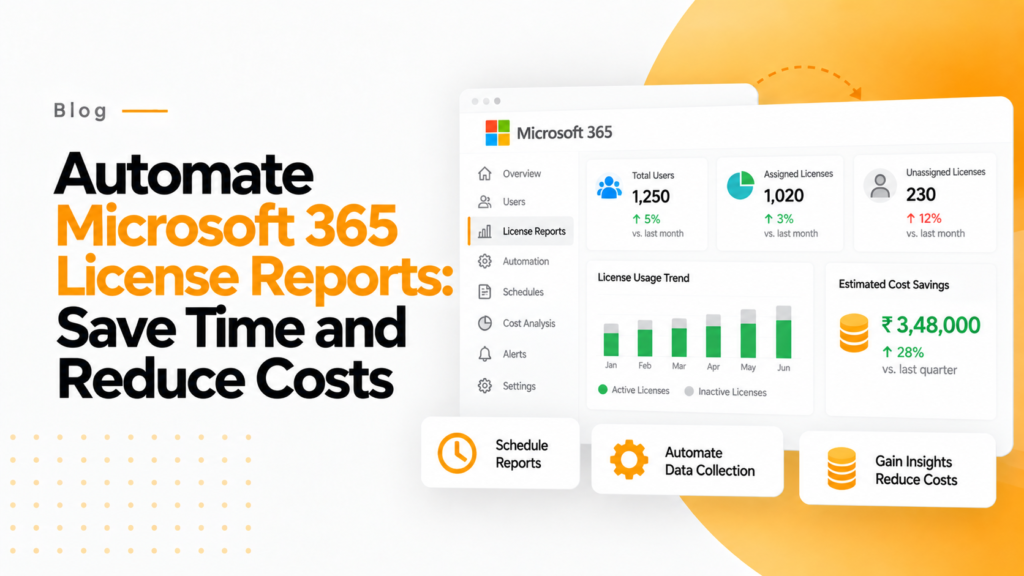
Key takeaways
- Get-MgSubscribedSku returns each SKU’s enabled and consumed units, enough for a basic license inventory report exported to CSV.
- Reading SignInActivity with Get-MgUser lets a script list licensed users who have not signed in for more than 30 days.
- Group-based licensing in Microsoft Entra ID assigns and removes licenses automatically as users join or leave security groups.
Microsoft 365 license reports are essential in today’s cost-conscious business environment, as inefficient license management represents a significant recurring expense for organizations of all sizes. Many enterprise Office 365/M365 licenses are inactive, underutilized, oversized, or completely unassigned. This wastage translates directly into unnecessary IT spending that better management of inactive licenses can reduce.
If you’re an IT administrator or leader responsible for managing your organization’s Microsoft 365 environment, you’ve likely experienced the frustration of trying to optimize licensing costs without the right tools or processes. The good news? Automated license reporting can transform this challenge into a strategic opportunity to reclaim budget while ensuring users have exactly what they need.
In this comprehensive guide, you’ll discover:
- Why license reporting is crucial for cost optimization in 2025
- How to implement automated reporting solutions using PowerShell
- Practical strategies to identify and eliminate license waste
- Tools and techniques to maintain ongoing optimization
Let’s dive into how you can take control of your Microsoft 365 licensing and turn it into a strategic advantage for your organization.
The Growing Importance of Microsoft 365 License Management
As Microsoft continues to evolve its licensing models and pricing structures, effective license management has never been more critical. With price increases of up to 25% implemented in recent years, organizations need to be increasingly vigilant about optimizing their license usage.
The Real Cost of Poor License Management
The financial impact of inefficient license management extends far beyond the direct costs of unused licenses. Consider these statistics:
- Most organizations can save 20-30% on their Microsoft 365 licensing costs through proper optimization8
- For a company spending $1 million annually on Microsoft 365, that’s $200,000-$300,000 in potential savings
- One global engineering firm saved $4.5 million over three years by auditing usage and standardizing appropriate license levels
Beyond direct cost savings, proper license management also reduces security risks associated with orphaned accounts, improves compliance posture, and streamlines IT operations.
Key Changes Impacting License Management in 2025 and 2026
Microsoft has implemented significant changes to its licensing validation process that IT administrators need to be aware of:
- Since January 15, 2026, Microsoft validates user licenses for Dynamics 365 finance and operations apps at each customer’s contract renewal or anniversary date, and users without a required license get an in-app notice 30 days before
- In that renewal or anniversary month, every user needs an assigned license to keep accessing the finance and operations apps
- Administrators now have improved license reporting capabilities in the Power Platform admin center and Microsoft Dynamics 365 Lifecycle Services
These changes make proactive license management more important than ever for maintaining business continuity and controlling costs.
Essential Microsoft 365 License Reports Every IT Admin Should Run
Effective license optimization starts with visibility. Here are the critical reports you should be generating regularly to understand your licensing landscape.
License utilization reports
License utilization reports provide insights into how effectively your purchased licenses are being used. These reports help identify:
- Inactive licenses assigned to users who aren’t using the services
- Underutilized licenses where users only access a small subset of available features
- Oversized licenses where users have more capabilities than they need
By running these reports monthly, you can quickly identify opportunities to downgrade, reassign, or remove licenses based on actual usage patterns.
User activity and adoption reports
Understanding how users interact with Microsoft 365 services helps determine the appropriate license level for each user. Key metrics to track include:
- Login frequency and last login date
- Application usage (which apps are being used and how often)
- Feature utilization within applications
- Storage consumption
These insights allow you to make data-driven decisions about right-sizing licenses based on actual needs rather than assumptions or organizational hierarchy.
License assignment and distribution reports
These reports provide a comprehensive view of your current license allocation across the organization, including:
- Distribution of license types across departments or business units
- Users with multiple license assignments
- Special license types (like Power BI, Project, or Visio) that often go underutilized
- Disabled or inactive user accounts that still consume licenses
With this information, you can identify immediate opportunities to reclaim and reallocate licenses.
Cost allocation and chargeback reports
For organizations that implement internal chargeback models, these reports are essential for:
- Allocating licensing costs to appropriate departments or cost centers
- Tracking license expenses against budgets
- Providing transparency into IT costs
- Building accountability for license usage at the department level
How to Automate Microsoft 365 License Reporting with PowerShell
PowerShell provides powerful capabilities for automating license reporting in Microsoft 365 environments. Here’s a step-by-step approach to implementing automated reports.
Setting up your PowerShell environment
Before creating reports, you’ll need to set up your environment properly:
- Install the required PowerShell modules: powershell
Install-Module Microsoft.Graph Install-Module ExchangeOnlineManagement - Connect to Microsoft Graph with appropriate permissions: powershell
Connect-MgGraph -Scopes "Directory.Read.All", "Organization.Read.All", "User.Read.All", "AuditLog.Read.All" - Create a directory for storing your reports: powershell
New-Item -Path "C:\M365Reports" -ItemType Directory -Force
Creating basic license inventory reports
This script provides a comprehensive view of all licenses in your tenant:
# Get all subscribed SKUs in the tenant
$licenses = Get-MgSubscribedSku
# Create a report object
$report = @()
foreach ($license in $licenses) {
    # Get friendly name for the license
    $skuPartNumber = $license.SkuPartNumber
    # Calculate usage percentages
    $totalUnits = $license.PrepaidUnits.Enabled
    $consumedUnits = $license.ConsumedUnits
    $availableUnits = $totalUnits - $consumedUnits
    $usagePercentage = [math]::Round(($consumedUnits / $totalUnits) * 100, 2)
    # Create report entry
    $reportEntry = [PSCustomObject]@{
        LicenseName = $skuPartNumber
        TotalLicenses = $totalUnits
        AssignedLicenses = $consumedUnits
        AvailableLicenses = $availableUnits
        UsagePercentage = $usagePercentage
    }
    $report += $reportEntry
}
# Export to CSV
$report | Export-Csv -Path "C:\M365Reports\LicenseInventory_$(Get-Date -Format 'yyyyMMdd').csv" -NoTypeInformation
Identifying inactive licensed users
This script helps identify users with licenses who haven’t logged in recently:
# Set the threshold for inactivity (in days)
$inactivityThreshold = 30
# Get current date
$currentDate = Get-Date
# Get all licensed users
$licensedUsers = Get-MgUser -Filter "assignedLicenses/`$count ne 0" -All -Property DisplayName,UserPrincipalName,SignInActivity,AssignedLicenses
# Create a report object
$inactiveUsers = @()
foreach ($user in $licensedUsers) {
    # Check if the user has sign-in activity
    if ($user.SignInActivity -and $user.SignInActivity.LastSignInDateTime) {
        $lastSignIn = $user.SignInActivity.LastSignInDateTime
        $daysSinceLastSignIn = ($currentDate - $lastSignIn).Days
        # Check if the user is inactive based on the threshold
        if ($daysSinceLastSignIn -gt $inactivityThreshold) {
            $inactiveUsers += [PSCustomObject]@{
                DisplayName = $user.DisplayName
                UserPrincipalName = $user.UserPrincipalName
                LastSignIn = $lastSignIn
                DaysSinceLastSignIn = $daysSinceLastSignIn
                LicenseCount = $user.AssignedLicenses.Count
            }
        }
    } else {
        # User has never signed in
        $inactiveUsers += [PSCustomObject]@{
            DisplayName = $user.DisplayName
            UserPrincipalName = $user.UserPrincipalName
            LastSignIn = "Never"
            DaysSinceLastSignIn = "N/A"
            LicenseCount = $user.AssignedLicenses.Count
        }
    }
}
# Export to CSV
$inactiveUsers | Export-Csv -Path "C:\M365Reports\InactiveLicensedUsers_$(Get-Date -Format 'yyyyMMdd').csv" -NoTypeInformation
Scheduling automated reports
To ensure consistent reporting, set up scheduled tasks to run your scripts automatically:
- Create a PowerShell script file containing your reporting scripts
- Use Windows Task Scheduler to run the script at regular intervals: powershell
$action = New-ScheduledTaskAction -Execute "PowerShell.exe" -Argument "-NoProfile -ExecutionPolicy Bypass -File C:\Scripts\M365LicenseReports.ps1" $trigger = New-ScheduledTaskTrigger -Weekly -DaysOfWeek Monday -At 7am Register-ScheduledTask -Action $action -Trigger $trigger -TaskName "M365 License Reports" -Description "Generate weekly Microsoft 365 license reports"
Practical Strategies to Optimize Microsoft 365 License Costs
With your reporting infrastructure in place, you can implement these proven strategies to reduce costs.
Right-sizing user licenses
One of the most effective optimization strategies is ensuring users have the appropriate license tier for their needs:
- Downgrade from E5 to E3: If users don’t need advanced security features, Power BI Pro, or Phone System capabilities, downgrading from E5 to E3 can save approximately $21 per user per month at list prices
- Downgrade from E3 to E1: For users who primarily use web-based applications and don’t require desktop Office applications, moving from E3 to E1 lowers the per-user monthly cost
- Implement F1/F3 licenses: For frontline workers who need limited functionality, F1/F3 licenses can provide significant savings compared to E3/E5 licenses
A mid-market business achieved a 20% reduction in Microsoft 365 spend by strategically moving light users to cheaper plans while maintaining premium licenses only for those who needed them.
Reclaiming inactive licenses
Inactive licenses represent immediate cost-saving opportunities:
- Establish a process to automatically reclaim licenses from users who haven’t logged in for a specified period (typically 30-60 days)
- Create a license reclamation policy for employees who leave the organization
- Implement a workflow for temporary license assignments for contractors or project-based needs
One organization discovered that 56% of their Office 365 licenses were not fully utilized. Through a combination of downgrades and removals, they significantly reduced their license count and reallocated many licenses for growth without incurring new expenses.
Implementing license pools and workflows
Rather than assigning licenses permanently, consider implementing a more dynamic approach:
- Create license pools for specialized applications like Project, Visio, or Power BI
- Implement approval workflows for premium license requests
- Set up regular reviews of specialized license usage
- Establish clear criteria for different license tiers based on job roles and requirements
Leveraging group-based licensing
Microsoft’s group-based licensing capabilities can streamline license management:
- Assign licenses automatically based on security group membership
- Create standardized license packages for different job roles
- Automate license assignment during onboarding and removal during offboarding
- Use dynamic groups to ensure licenses align with changing organizational roles
Tools and Technologies to Enhance License Management
While PowerShell provides powerful capabilities, additional tools can further enhance your license management efforts.
Microsoft admin center and built-in tools
Microsoft provides several native tools for license management:
- Microsoft 365 Admin Center: Offers basic license management capabilities and usage reports
- Microsoft 365 Usage Analytics: Provides Power BI templates for analyzing usage patterns
- Microsoft Entra ID: Enables group-based licensing and automated provisioning
These tools provide a solid foundation but may lack the depth and automation capabilities required for large organizations.
Third-party license management solutions
For more comprehensive management, consider specialized tools:
- 365TUNE: 365TUNE offers advanced analytics and eliminates manual processes by automating detailed financial reports. Gain clarity, accuracy, and speed in tracking Microsoft 365 expenses and ROI.
- CoreView: Offers features for automating and managing licenses, with deeper insights and reporting capabilities than native Microsoft tools
- Syskit Point: Provides comprehensive auditing and reporting for Microsoft 365, including license utilization
- Zluri: Helps evaluate Microsoft 365 license usage and identify opportunities for optimization
These solutions typically offer more sophisticated features like automated workflows, detailed usage analytics, and cost allocation capabilities.
Custom PowerShell solutions
For organizations with specific requirements, custom PowerShell solutions can provide tailored functionality:
- The “O365LicenseReportingAndManagement.ps1” script can perform more than 10 Office 365 license reporting and management activities, including bulk assignment or removal of licenses
- The “Microsoft 365 Licensing Report” PowerShell script provides comprehensive insights into license allocation and usage
Common Challenges and How to Overcome Them
Despite the clear benefits, organizations often face obstacles when implementing license optimization initiatives.
Resistance to change
Users and departments may resist having their licenses downgraded or removed. To address this:
- Communicate the business rationale for optimization
- Implement a clear escalation process for exceptions
- Provide temporary license upgrades for specific projects or needs
- Focus on the user experience rather than the license tier
Lack of visibility across complex organizations
Large or decentralized organizations often struggle with comprehensive visibility:
- Implement centralized reporting across all tenants and subscriptions
- Establish consistent naming conventions and tagging for resources
- Create dashboards that provide both high-level and detailed views
- Regularly share insights with stakeholders across the organization
Integration with existing processes
License management should integrate seamlessly with existing IT processes:
- Connect license management with HR systems for automated onboarding/offboarding
- Integrate with ITSM platforms for request management and approvals
- Align license reviews with budgeting cycles
- Incorporate license optimization into regular IT governance reviews
Building a Sustainable License Optimization Program
To ensure ongoing success, license optimization should become a continuous program rather than a one-time project.
Establishing governance and ownership
Clear governance is essential for sustainable optimization:
- Designate a license management owner or team
- Establish a regular cadence for license reviews (monthly or quarterly)
- Create clear policies for license allocation and exceptions
- Develop KPIs to measure the effectiveness of your optimization efforts
Implementing continuous monitoring
Rather than relying on periodic reviews, implement continuous monitoring:
- Set up automated alerts for unusual license consumption patterns
- Create dashboards that provide real-time visibility into license utilization
- Implement trend analysis to identify changing usage patterns
- Regularly benchmark your license costs against industry standards
Measuring and reporting success
To maintain momentum and executive support, consistently measure and report on the impact of your optimization efforts:
- Track cost savings from license optimization initiatives
- Report on improvements in license utilization rates
- Highlight process improvements and efficiency gains
- Connect license optimization to broader IT and business objectives
Summary
Effective license management represents one of the most immediate opportunities to reduce IT costs while improving operational efficiency. By implementing automated reporting and following the strategies outlined in this guide, you can achieve significant savings while ensuring users have the tools they need to be productive.
The key is to start with visibility, implement data-driven optimization strategies, and establish sustainable processes for ongoing management. With the right approach, you can transform license management from a necessary administrative task into a strategic advantage for your organization.
Frequently asked questions
How do I export a Microsoft 365 license report?
In the Microsoft 365 admin center, open Users, then Active users, and choose Export users to get a CSV that lists each user’s licenses. Billing, then Licenses, shows purchased and assigned totals for each product.
What permissions do I need to read sign-in activity with Microsoft Graph PowerShell?
Reading the signInActivity property needs the AuditLog.Read.All permission alongside User.Read.All, and the tenant needs Microsoft Entra ID P1 or P2. Without them the last sign-in date comes back empty or the request fails.
How can I run a Microsoft 365 license report automatically every week?
Save the script as a .ps1 file and schedule it with Windows Task Scheduler or an Azure Automation runbook. For unattended runs, connect to Microsoft Graph with an app registration and certificate instead of an interactive sign-in.
What license do I need for group-based licensing?
Group-based licensing requires Microsoft Entra ID P1 or higher, which is included in plans such as Microsoft 365 E3, E5 and Business Premium. Each user who receives licenses through a group needs that entitlement.