
Microsoft 365 usage reports
Active users for every Microsoft 365 service, by department and license type, with the monthly cost of each license nobody used.
What are Microsoft 365 usage reports?
Microsoft 365 usage reports show how many people use each service and how: emails sent and read in Exchange, chats and meetings in Teams, files stored in OneDrive and SharePoint. In the admin center they live under Reports › Usage and cover the last 7, 30, 90 or 180 days.
365TUNE builds the same reports from Microsoft Graph and adds four things the admin center leaves out: names, a split by department or any directory attribute, up to 24 months of history, and the monthly cost of every license nobody used.
What the admin center reports leave out
The admin center reports answer "how many people used Teams this month?" They stop short of the questions that come up before a renewal.
- Which teams: the reports list users, not departments. To split by team, you export the CSV and join it to your directory by hand.
- Who: names show as random strings by default since September 2021, until a Global Administrator turns that off.
- Since when: the longest period is 180 days, so you can't compare this renewal with the last one.
- At what cost: a user with no activity looks the same whether their license costs $10 or $60 a month.
365TUNE answers all four from one scan, with names, and keeps up to 24 months of results, starting with the 180 days Microsoft already holds.
Microsoft explains hidden names in Microsoft 365 reports show anonymous user names.
One department's usage, the way you'll see it
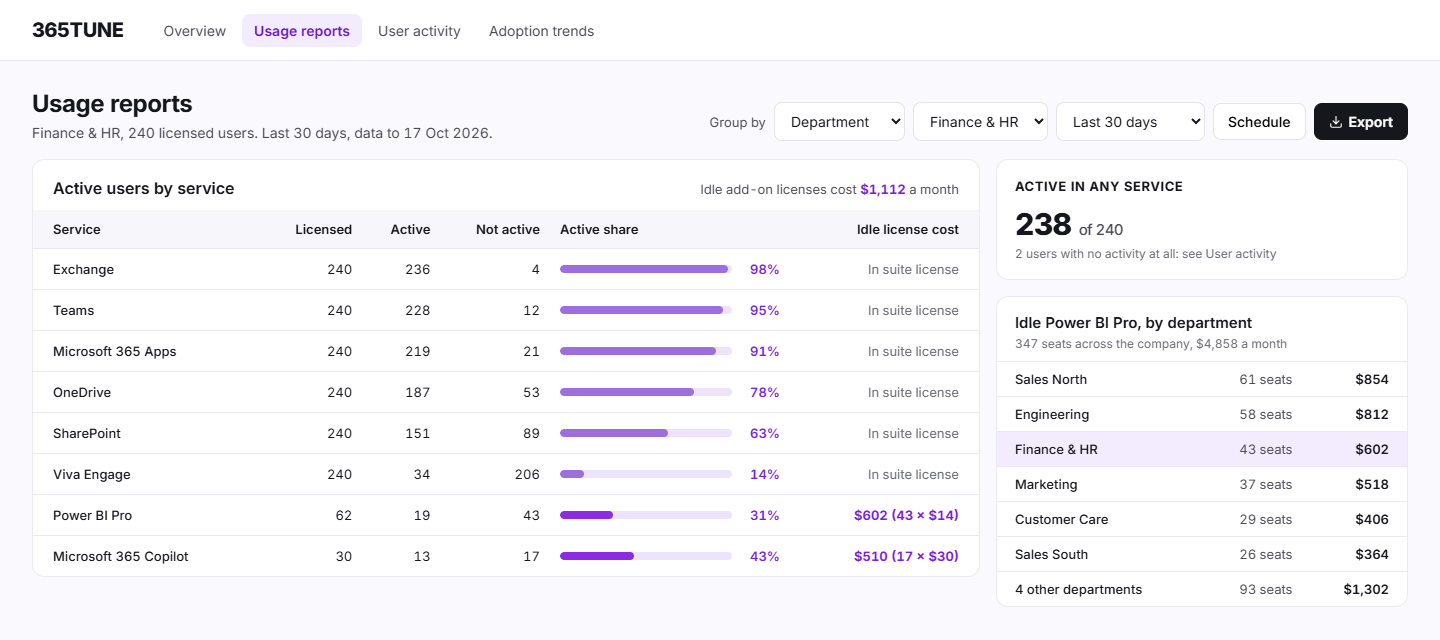
Sample data for Finance & HR, 240 licensed users, last 30 days:
| Service | Licensed | Active | Not active | Monthly cost of idle licenses |
|---|---|---|---|---|
| Exchange | 240 | 236 | 4 | In the suite license |
| Teams | 240 | 228 | 12 | In the suite license |
| Microsoft 365 Apps | 240 | 219 | 21 | In the suite license |
| OneDrive | 240 | 187 | 53 | In the suite license |
| SharePoint | 240 | 151 | 89 | In the suite license |
| Viva Engage | 240 | 34 | 206 | In the suite license |
| Power BI Pro | 62 | 19 | 43 | $602 (43 × $14) |
| Microsoft 365 Copilot | 30 | 13 | 17 | $510 (17 × $30) |
Low SharePoint and Viva Engage use is a training question. The 60 idle add-on seats are a cost question: $1,112 a month.
How it works
- Connect read-only. Consent to 365TUNE's read-only app in your tenant. Nothing is installed.
- Scan. It reads Microsoft Graph usage reports, sign-in activity and license assignments, daily or on a schedule you set.
- Group. Users are grouped by department, location, manager, license type or any directory attribute, such as cost center or project code.
- Act. Plan training for low adoption, and remove or reassign the idle licenses with their savings shown.
What you get
| Report | What it shows | What you do next |
|---|---|---|
| Active users by service | Exchange, Teams, SharePoint, OneDrive, Power BI, Copilot, Viva Engage, Microsoft 365 Apps, Project and Visio, active and not active | Spot the services people don't use |
| By department | The same split for each department | Take the numbers to each budget holder |
| By license type | Usage for each license, such as E3, E5 or Power BI Pro | Find add-ons nobody opens |
| Idle licenses | Users with no activity in 90 days, adjustable, with the monthly cost | Remove or reassign in unused license detection |
| Exports and schedules | CSV or PDF, or a report emailed on a schedule | Send finance the same report every month |
For IT teams and MSPs
For IT teams
Answer "are people using what we bought?" by department, with numbers finance can check against the invoice.
For MSPs
Run the same usage report for every customer and show each one which services their staff use and which licenses they could drop.
Security of the connection
The reports need needs read-only access to your tenant. 365TUNE reads usage counts and activity dates, never the content of emails or files. It asks only for the permissions each feature needs, and you choose the level of access you grant. 365TUNE is ISO 27001 certified, has a SOC 2 Type II report and doesn't use your data for training.
See usage by team, with idle seats priced
Connect read-only and get your first usage report during the 14-day trial.
Questions about Microsoft 365 usage reports
Where are the usage reports in the Microsoft 365 admin center?
Go to Reports › Usage. The dashboard shows activity across services, and each card opens a detailed report for 7, 30, 90 or 180 days. Data usually arrives within 24 to 72 hours.
How far back do Microsoft 365 usage reports go?
The admin center keeps 180 days. The usage analytics Power BI app keeps 12 months. 365TUNE loads Microsoft's last 180 days when you connect and keeps up to 24 months.
Can I see usage reports by department?
Not in the admin center: it lists users, not departments. The Power BI app can filter by department from directory attributes. 365TUNE groups every report by department, location, manager, license type or a custom attribute such as cost center or project code.
What counts as an active user?
Each service defines it by its own actions, such as sending or reading email in Exchange, or chatting and joining meetings in Teams. A user is active in a service if they did one of those actions in the period.
Do I need PowerShell?
No. 365TUNE reads the reports through Microsoft Graph from its read-only connection.