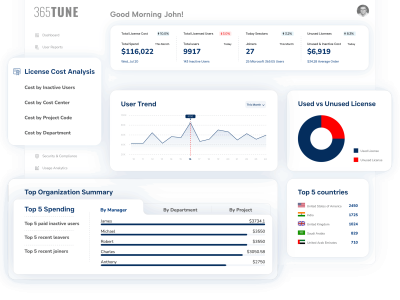


Your organization is spending over $330,000 monthly on Microsoft 365 licenses, but here’s the uncomfortable truth: you’re likely wasting 20-30% of that budget on inactive users and unused licenses.
If you’re an IT leader or consultant managing Microsoft 365 environments, you’ve probably experienced the frustration of trying to answer basic questions: Who’s actually using their licenses? Which departments are over-consuming? How much are we spending on employees who left months ago?
A Microsoft 365 Financial Reporting Dashboard transforms this chaos into clarity by providing dollar-value visibility into your license spending. Unlike traditional audit tools that only show user activity, financial dashboards reveal the actual cost impact of every license decision you make.
Here’s what you’ll discover in this guide:
-
- How financial reporting differs from standard Microsoft 365 auditing
-
- The hidden costs draining your license budget right now
-
- Real-world strategies to reclaim thousands in wasted spend
-
- Why PowerShell and Power BI fall short for financial optimization
-
- How to build a business case for license optimization tools
Let’s uncover where your Microsoft 365 budget is really going—and how to get it back.
Why Financial Visibility is the Missing Link in Microsoft 365 Management
For years, IT departments have relied on Microsoft 365 audit logs and activity reports to manage their environments. These tools tell you what’s happening, but they don’t tell you what it’s costing.
Here’s the problem: Traditional Microsoft 365 auditing tools track user activities, security events, and compliance data—all critical functions. But when your CFO asks, “How much are we spending on inactive licenses?” or “Which department has the highest license waste?”, standard audit tools leave you scrambling through spreadsheets and billing portals.
According to a 2024 Gartner study, organizations waste an average of $18 million annually on unused or underutilized SaaS licenses, with Microsoft 365 representing the largest portion of that spend. The gap? Financial intelligence isn’t built into most Microsoft 365 management platforms.
The 365UTNE Difference
At 365UTNE, we’ve specialized in Microsoft 365 optimization for enterprise clients managing 5,000+ users. Our platform was born from a simple observation: IT leaders need to speak the language of finance, not just IT operations.
Traditional Microsoft 365 audit tools show you login frequencies and file access patterns. Our financial reporting dashboard shows you that the 216 users who joined this month will cost you $14,088 monthly if their licenses go unused—a distinction that transforms license management from an IT task into a strategic financial initiative.
How Much Money Are You Really Losing? The True Cost of License Wastage
Let’s start with a scenario that’s probably happening in your organization right now.
The Inactive User Drain
Your organization has 10,268 licensed Microsoft 365 users. Sounds reasonable for a mid-to-large enterprise. But here’s what most IT leaders don’t realize: inactive users represent pure financial waste.
Consider these common scenarios:
Employees who left but licenses weren’t revoked – An employee leaves, HR processes the offboarding, but the Microsoft 365 license lingers for weeks or months. At an average of $20-65 per license monthly, that’s $240-780 per year per forgotten user.
Seasonal workers with year-round licenses – Retail, hospitality, and education sectors often maintain full licenses for employees who only work 6-8 months annually. A company with 500 seasonal workers could waste $120,000+ yearly on unnecessary licenses.
Trial period overbuy – Organizations frequently purchase licenses in bulk for new initiatives, then forget to scale down when the project concludes or team size adjusts.
A Microsoft 365 Financial Reporting Dashboard surfaces these issues instantly. Instead of manually cross-referencing HR data with license assignments, you see real-time financial impact: “You’re spending $14,088.88 monthly on inactive users—that’s $169,066 annually.”
The Multi-License Problem
Here’s another hidden cost: users with multiple redundant licenses.
Many organizations unknowingly assign users to multiple Microsoft 365 plans. An employee might have both E3 and E5 licenses, or maintain an old Business Premium license alongside a newer Enterprise assignment. These duplications are nearly impossible to spot without financial tracking.
In a recent client engagement, we discovered that 8% of their user base had duplicate license assignments—representing $47,000 in annual waste that standard audit tools never flagged.
What a Microsoft 365 Financial Reporting Dashboard Actually Shows You
Let’s break down the specific financial insights that transform how you manage Microsoft 365 spending.
Real-Time Spending Visibility
Unlike billing reports that arrive weeks after the fact, a financial dashboard provides up-to-the-minute cost tracking:
-
- Total organizational spend – See your complete monthly Microsoft 365 expenditure in a single metric
-
- Cost per user – Understand your per-capita licensing costs across different teams
-
- Spend trends – Identify whether your costs are increasing, decreasing, or holding steady
-
- Budget forecasting – Project future spending based on current growth rates and license assignments
The dashboard transforms abstract license counts into concrete dollar figures. When you see “$332,107.50 this month” with a trend indicator, you immediately understand financial trajectory without diving into complex billing portals.
Department and Manager-Level Cost Attribution
One of the most powerful features of financial reporting is cost attribution by organizational structure.
Imagine seeing at a glance:
-
- Your sales department spending $27,332 monthly with 215 licensed users
-
- Your marketing team spending $14,445 with 87 users
-
- Engineering consuming $10,906 for 65 users
This granularity enables chargeback models where departments own their license costs, incentivizing managers to maintain lean, efficient license assignments. It also reveals optimization opportunities—perhaps your marketing team has significantly higher per-user costs than necessary.
Manager-level visibility takes this further, showing which team leaders have the highest license spend, most inactive users, or greatest potential for optimization. This isn’t about blame—it’s about empowering managers with data to make better decisions.
Geographic Cost Distribution
For global organizations, understanding license costs by region is crucial for budget planning and compliance.
A financial dashboard breaks down spending by country, revealing:
-
- Which regions have the highest concentration of users (and associated costs)
-
- Geographic areas where license utilization is suboptimal
-
- Opportunities to leverage regional pricing variations
-
- Compliance costs unique to specific jurisdictions
Seeing that your United Arab Emirates operation has 3,307 active users while your United States presence has only 945 might prompt strategic questions about resource allocation and expansion planning.
The License Utilization Metric That Changes Everything
Here’s the metric that delivers immediate ROI: license utilization rate.
This simple visualization shows your active licenses versus total purchased licenses. In the example from our dashboard, an organization has 9,670 active users out of 33,335 total licenses—that’s only 29% utilization.
Think about that: 71% of purchased licenses are sitting unused, representing catastrophic waste. At an average license cost of $30 monthly, that’s over $700,000 in annual waste on inactive licenses alone.
A financial reporting dashboard makes this waste visible and actionable. You’re not just seeing user counts—you’re seeing money being thrown away that could fund other strategic initiatives.
Why PowerShell Scripts and Power BI Reports Fall Short
Many IT teams attempt to build Microsoft 365 financial visibility using PowerShell scripts or Power BI dashboards. While these approaches can provide some insights, they have significant limitations.
The PowerShell Challenge
PowerShell is powerful for extracting Microsoft 365 data, but building comprehensive financial reports requires:
Constant maintenance – Microsoft regularly updates their Graph API and licensing models. Your custom scripts break, requiring ongoing developer time to maintain.
No real-time pricing integration – PowerShell can pull license assignments, but connecting this to real-time Microsoft pricing (which varies by plan, region, and contract terms) requires complex additional development.
Limited visualization – PowerShell outputs data, but creating intuitive financial dashboards requires additional tools and expertise.
High technical barrier – Most IT leaders and financial stakeholders can’t read PowerShell scripts, creating a bottleneck where insights require developer intervention.
One IT director told us: “We spent three months building PowerShell reports, then Microsoft changed their licensing model. We’re back to square one.”
The Power BI Limitation
Power BI is excellent for data visualization, but purpose-built financial reporting requires more:
Data source complexity – You need to connect Microsoft 365 licensing data, billing information, HR systems, and cost allocation rules. This integration work is substantial.
Missing financial context – Power BI shows you the data you feed it, but without pre-built financial logic (cost attribution, waste calculation, optimization recommendations), you’re still building everything from scratch.
Licensing costs – Ironically, comprehensive Power BI implementations require premium licenses, adding to your Microsoft spend.
Expertise requirement – Building effective financial dashboards in Power BI requires specialized knowledge of both the tool and Microsoft 365 licensing complexity.
The Purpose-Built Advantage
A dedicated Microsoft 365 Financial Reporting Dashboard like 365UTNE eliminates these challenges by providing:
-
- Pre-built financial intelligence with Microsoft 365-specific cost optimization logic
-
- Automatic pricing updates that reflect Microsoft’s latest licensing changes
-
- Out-of-the-box visualizations designed specifically for license cost optimization
-
- Self-service insights that empower non-technical stakeholders
-
- Instant deployment with immediate results
-
- Continuous improvement with features developed specifically for financial optimization
You’re not just getting a reporting tool—you’re getting years of Microsoft 365 financial expertise built into the platform.
How to Audit Microsoft 365 Licenses with Financial Intelligence
Let’s walk through a practical approach to conducting a financially-focused Microsoft 365 audit using a purpose-built dashboard.
Step 1: Establish Your Baseline
Begin by documenting your current state:
-
- Total monthly Microsoft 365 spend
-
- Number of licensed users
-
- License types and their associated costs
-
- Historical spending trends over the past 6-12 months
Your financial dashboard should surface these metrics immediately. If it takes more than 30 seconds to find your total monthly spend, you don’t have adequate financial visibility.
Step 2: Identify Immediate Cost Reduction Opportunities
Focus on these high-impact areas:
Inactive user licenses – Users who haven’t logged in for 30+ days. These represent pure waste and should be your first optimization target.
Recently departed employees – Cross-reference your license assignments with HR data to find users who’ve left but retained licenses.
Overprovisioned licenses – Users assigned premium licenses (E5, for example) who only need standard features available in E3 or E1.
A good financial dashboard automatically flags these opportunities with dollar-value impact: “Removing 847 inactive licenses would save $16,940 monthly.”
Step 3: Implement Department-Level Accountability
Share financial dashboards with department heads showing:
-
- Their team’s total license spend
-
- Per-user costs compared to organizational averages
-
- Optimization opportunities within their department
When managers see that their team is spending 40% more per user than other departments, they’re motivated to investigate and optimize. Financial transparency drives behavioral change.
Step 4: Monitor and Optimize Continuously
Microsoft 365 license optimization isn’t a one-time project—it’s an ongoing practice. Set up:
Weekly reviews of new joiner costs and inactive user trends
Monthly optimization sprints where you target specific cost reduction areas
Quarterly strategic reviews examining whether license types align with actual user needs
Annual contract optimization using accumulated data to negotiate better terms
Your financial dashboard should become part of regular IT operations, not a tool you check occasionally.
Addressing Common Objections to Financial Reporting Tools
Let’s address the elephant in the room: if financial visibility is so valuable, why aren’t more organizations using dedicated tools?
“We Already Have Microsoft 365 Admin Center”
Yes, Microsoft provides basic reporting in their admin portal. But these reports focus on technical metrics—not financial impact.
The admin center tells you how many licenses you have. A financial reporting dashboard tells you how much those licenses cost, where spend is wasted, and what actions deliver ROI. That’s the difference between data and insights.
“Custom PowerShell Scripts Give Us What We Need”
As we discussed earlier, custom scripts require ongoing maintenance and lack the financial intelligence layer that transforms data into actionable cost optimization.
Ask yourself: How long would it take your team to answer these questions?
-
- Which manager has the highest license waste?
-
- What’s our monthly cost for users who joined in the last 30 days?
-
- How much would we save by moving specific users from E5 to E3 licenses?
If these questions require more than a few clicks, your current solution isn’t financially optimized.
“This Seems Like Another Tool to Manage”
This is a valid concern—tool sprawl is real. But consider this: if a Microsoft 365 Financial Reporting Dashboard saves you $200,000 annually in license waste, the time investment pays for itself many times over.
The key is choosing a platform that provides value immediately, not another tool that requires months of configuration before delivering insights. Look for solutions offering pre-built financial dashboards that work within days, not months.
Your Action Plan: Implementing Financial Visibility Today
You now understand why Microsoft 365 financial reporting matters and what capabilities truly deliver value. Here’s your roadmap to implementation.
Immediate Actions (This Week)
-
- Audit your current financial visibility – Can you answer the questions we’ve discussed in this article? If not, you have a visibility gap.
-
- Calculate your potential waste – Use this simple formula: (Total licensed users × 0.25) × Average license cost × 12 months. That 25% estimate is conservative—most organizations find more waste than expected.
-
- Document your current process – How do you currently track Microsoft 365 costs? How long does it take? Who’s involved? Understanding current state reveals improvement opportunities.
Short-Term Goals (Next 30 Days)
-
- Evaluate purpose-built solutions – While custom tools seem appealing, purpose-built platforms deliver ROI faster because financial intelligence is pre-configured.
-
- Run a pilot program – Start with one department or region. Demonstrate financial impact before rolling out organization-wide.
-
- Build your business case – Calculate potential savings, implementation costs, and payback period. For most organizations, Microsoft 365 financial optimization tools pay for themselves in 2-4 months.
Long-Term Transformation (Next 90 Days)
-
- Implement continuous optimization – Make license cost review part of regular IT operations, not an annual project.
-
- Enable self-service for managers – Give department heads visibility into their team’s license spend so they can self-optimize.
-
- Establish cost governance – Create policies for license assignment, removal timelines for departing employees, and regular optimization reviews.
The Bottom Line: Financial Reporting is License Optimization
Microsoft 365 licensing is one of your organization’s largest IT expenditures. Managing it without financial visibility is like driving blind—you know you’re moving, but you have no idea where you’re going or what obstacles lie ahead.
A Microsoft 365 Financial Reporting Dashboard transforms license management from a reactive, technically-focused task into a strategic, financially-optimized business function. Instead of asking “Are users active?”, you ask “What is this costing us, and how can we optimize?”
The organizations winning at Microsoft 365 management aren’t just tracking user activity—they’re tracking every dollar, identifying waste, and continuously optimizing. They’re using tools like 365UTNE that provide purpose-built financial intelligence rather than cobbling together scripts and reports.
Your next step is simple: gain financial visibility into your Microsoft 365 environment. Whether you’re spending $30,000 monthly or $3 million, the waste is there—the question is whether you’ll see it before your CFO does.
Ready to See Your Microsoft 365 Waste in Real Numbers?
Start your free 365UTNE trial today and discover exactly where your Microsoft 365 budget is going. See results instantly:
-
- Your total monthly Microsoft 365 spend
-
- Cost of inactive user licenses
-
- Department and manager-level spend attribution
-
- Specific dollar-value optimization opportunities
About 365UTNE
365UTNE is a purpose-built Microsoft 365 Financial Reporting and Optimization platform designed for IT leaders managing complex, enterprise-scale environments. Unlike generic audit tools, 365UTNE provides dollar-value insights that drive real cost savings and strategic license optimization.
Frequently Asked Questions
What is a Microsoft 365 Financial Reporting Dashboard?
A Microsoft 365 Financial Reporting Dashboard is a specialized analytics tool that converts Microsoft 365 license usage data into financial metrics, displaying exact dollar amounts for license waste, cost per user, and savings opportunities. Unlike Microsoft’s native admin center that only shows license assignments and basic usage statistics, a financial dashboard translates this data into actionable cost intelligence. It shows not just that you have 150 licenses assigned, but that those licenses cost $45,000 annually and that 30% ($13,500) is being wasted on unused seats. These dashboards are essential for IT leaders who need to justify budgets, identify cost reduction opportunities, and present financial data to executives and finance teams.
How much money can a Microsoft 365 Financial Reporting Dashboard save?
Organizations typically identify 20-40% waste in their Microsoft 365 spending using financial reporting dashboards. For example, a company with 500 Microsoft 365 E3 licenses at $36/user/month spends $216,000 annually. If 30% of these licenses are unused or underutilized (a common finding), that represents $64,800 in annual waste. The dashboard pinpoints exactly which licenses to reclaim or downgrade, enabling immediate cost recovery. Beyond one-time savings, ongoing monitoring prevents new waste from accumulating. Most organizations using financial dashboards achieve ROI within the first month and continue to save 15-25% on their Microsoft 365 budget year over year through proactive optimization.
Can Microsoft's native admin center provide financial reporting?
No. The Microsoft 365 admin center shows license assignments, usage statistics, and service health, but it does not translate this data into financial impact or dollar values. You can see that 150 licenses are assigned and how many users logged in last month, but not what those licenses cost, how much money is wasted on inactive users, or what savings could be achieved by optimization. Financial reporting requires correlating Microsoft’s usage data with your actual license costs, contract terms, and pricing tiers—something native tools don’t do. Third-party financial reporting platforms like 365tune bridge this gap by connecting usage data with financial data to show cost per user, waste in dollars, department-level spending, and ROI projections in executive-ready formats.
What financial metrics should a Microsoft 365 dashboard include?
A comprehensive Microsoft 365 financial dashboard should include: total monthly and annual license spend, cost per user broken down by license type (E3, E5, Business Premium, etc.), total waste amount in dollars, unused license costs (assigned but never used), underutilized license costs (used below threshold), potential monthly and annual savings, ROI calculations for optimization actions, department or business unit cost allocation, license type distribution and costs, historical spend trends, cost comparison against budget, and projected costs based on current growth. For executive reporting, dashboards should also include cost per employee metrics, percentage of budget consumed by Microsoft 365, and year-over-year cost changes. The best dashboards make these metrics filterable by department, location, license type, and time period.
How often should Microsoft 365 financial reports be reviewed?
Review frequency depends on organization size and license change velocity. Organizations with 100+ users should review financial reports monthly to catch waste before it accumulates. Smaller organizations (under 100 users) can review quarterly. However, major reviews should always occur: during annual budget planning cycles, 60-90 days before Microsoft 365 renewals, after organizational changes like layoffs, acquisitions, or restructuring, when Microsoft announces pricing increases, and after adding or removing significant numbers of users. Real-time dashboards enable continuous monitoring so IT leaders can set automated alerts for anomalies like sudden license increases, unexpected cost spikes, or accumulation of unassigned licenses. Many organizations schedule monthly optimization meetings where finance and IT review the dashboard together to align spending with business needs.
Who should have access to Microsoft 365 financial reporting dashboards?
Multiple stakeholders benefit from financial dashboard access, each with different needs. IT leaders and administrators need full access to identify optimization opportunities, manage license assignments, and justify technology decisions. Finance teams require access to verify Microsoft 365 spending aligns with budgets and to forecast future costs. Executives and C-suite need high-level financial summaries showing total spend, waste percentages, and ROI from optimization efforts. Department managers benefit from seeing their team’s license costs to inform hiring and budget planning. IT consultants and MSPs managing multiple clients need dashboard access to demonstrate value and proactive cost management. The best practice is role-based access where each stakeholder sees the metrics relevant to their decisions, with IT maintaining administrative control while providing finance and executives with read-only access to financial summaries and cost allocation reports.