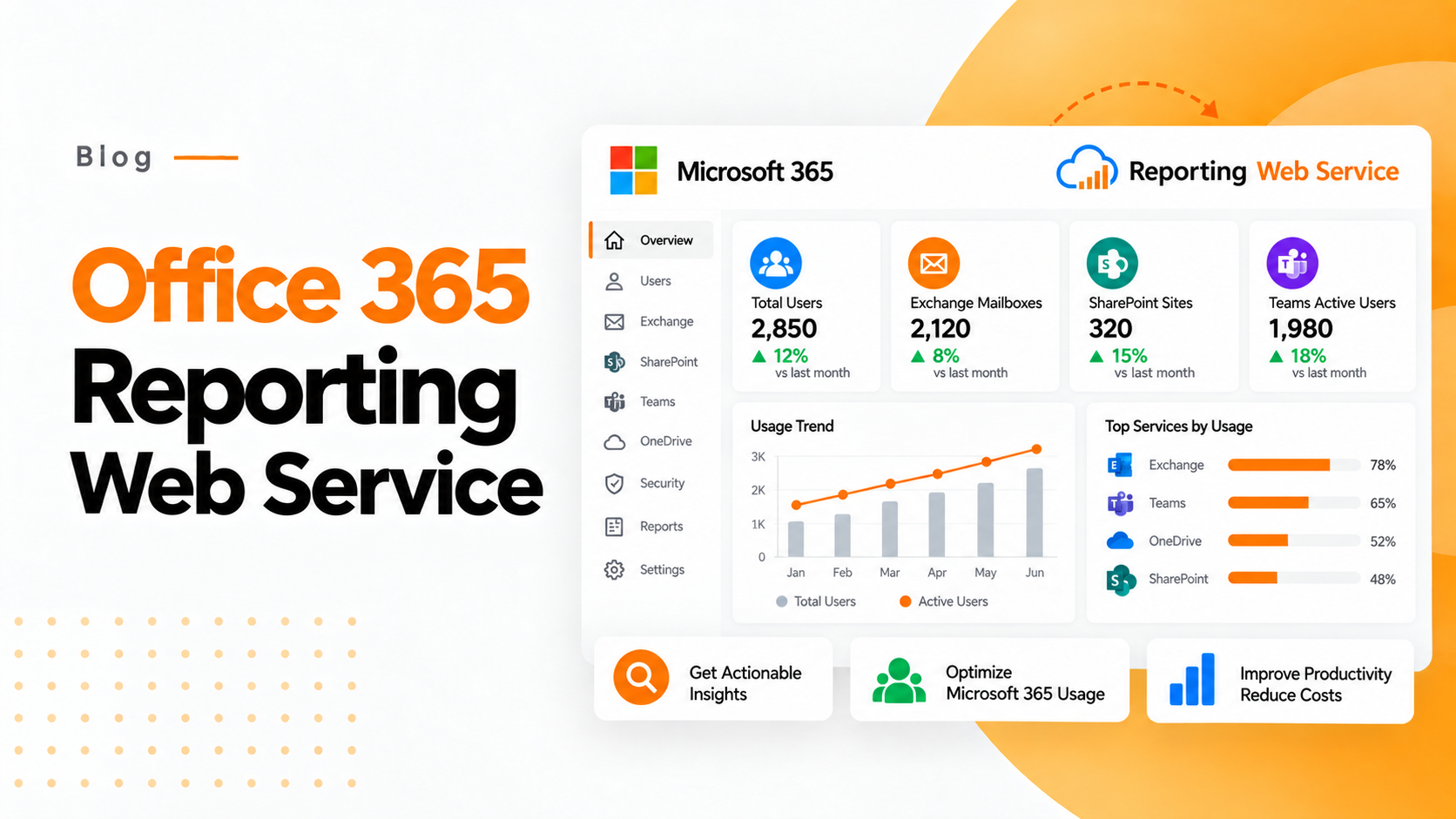
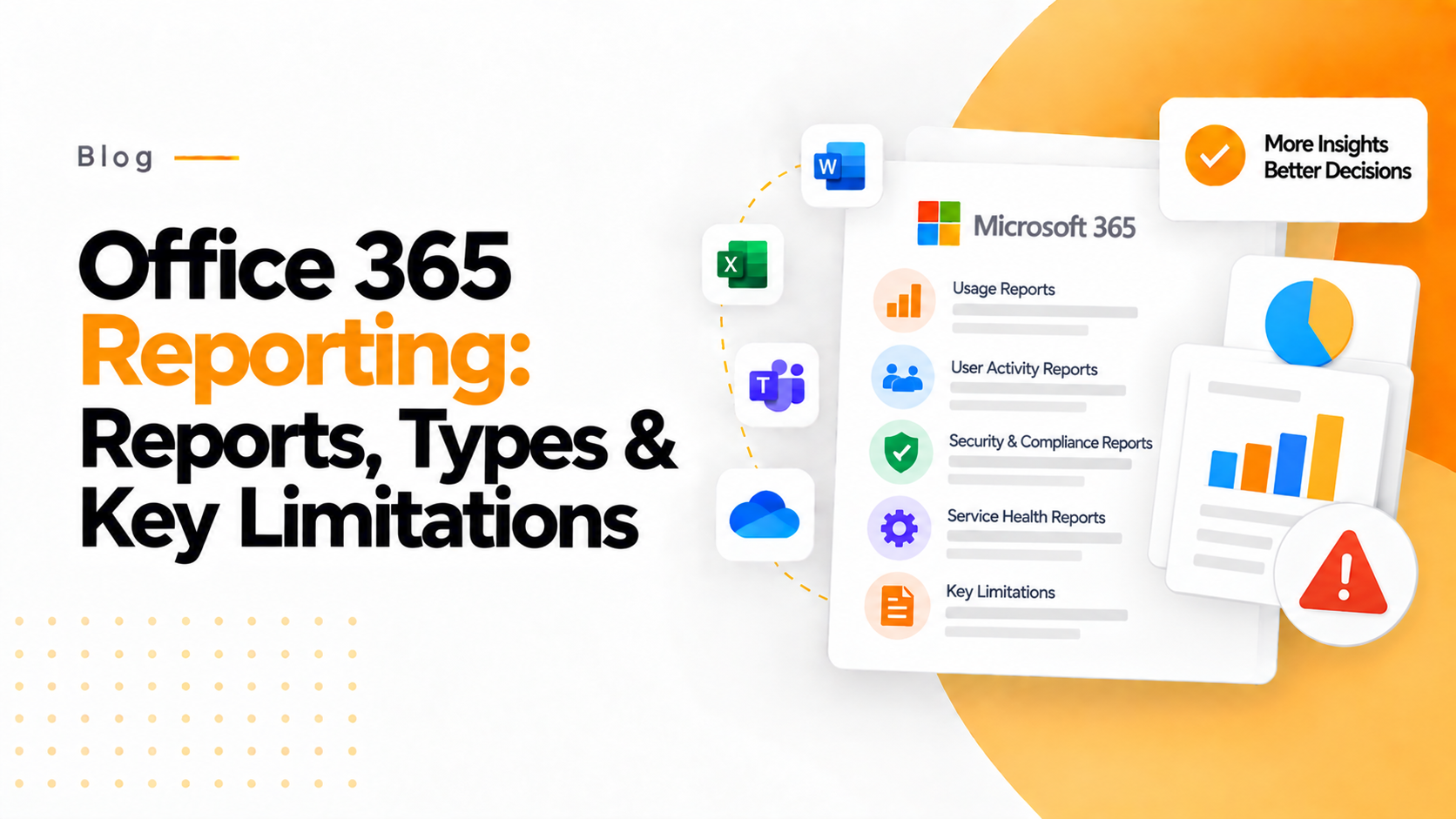

Office 365 Reporting: Microsoft 365 formerly known as Office 365 is a popular subscription-based service that offers access to its applications like Word, Excel and Outlook and much more.
The reporting feature refers to the set of analytics and auditing tools that provides several insights related to usage, performance, and security of the Office 365 services within an organization.
These reports cover a wide range of domains, including user activity, email traffic, security incidents, device management and much more. Office 365 reports are different from Microsoft 365 activity reports.
These details are essential for both enterprise organizations and managed service providers to analyze, optimize productivity, manage costs and ensure compliance.
Office 365 Reporting: Understanding Microsoft 365 Reports dashboard
In Microsoft 365 (Office 365) admin center, the Reports dashboards displays usage activity across Microsoft 365 environment. With the right set of permissions, you can get deep usage insights of the service.
For instance, Teams Administrators can get core insights about the service usage. For instance, the number of users in a specific Microsoft 365 service, the number of activated users and how much emails flows through the organization. The reports last for 7, 30, 90 and 180 days to analyze.
Who can View Office 365 Reports?
The following people have the permissions to view Office 365 reports:
• Global Admins
• Exchange Admins
• Skype for Business Admins
• SharePoint admins
• Teams Administrator
• Global reader (with no user details)
• Reports reader
• Teams Communications Administrator
• User Experience Success Manager (with no user details)
• Usage Summary Reports reader (with no user details): As this summary report is based on Microsoft Entra it has read access to user, groups and other settings in the Microsoft 365 admin center.
How Office 365 Reports Work?
The Unified Audit Log is a key feature is in Microsoft 365 which records and stores all the user and system activity across the environment. This covers activities done in SharePoint Online, OneDrive, Exchange Online, Microsoft Teams, Intune and much more.
The audit log stores the entries of various events like sent and received mails, file modifications, user sign-ins, user permission modifications and many more.
However, the monitoring the availability and status of the Office 365 portal is vital. This ensures your organization perform its operations smoothly. By analyzing the data in the audit log, administrators can identify the suspicious activities, investigate security incidents and provide proof while compliance audits.
That’s why Microsoft 365 offers a variety of audit reports that are essential for monitoring and analyzing the activity within your organization. These reports provide a user-friendly way to view and analyze the data with summarizations, visualizations and several other features that makes data simpler to understand.
Types of Office 365 Reports
Office 365 reports helps to provide insights into different aspects. These insights provides details on company’s usage pattern, security, compliance and administrative activities. Here are some most types of Office 365 reports:
| Report Type | Description |
| Usage Reports | These reports provide details on how Office 365 applications and services are being used across the organization. This includes details like active users, file storage, Microsoft Teams activity, email activity, SharePoint site usage and much more. |
| License Reports | License reports help companies to manage and optimize their Office 365 subscriptions. These reports provide details related to license allocation, user assignments and license costs. Additionally, these reports also offer insights on license assignments, active and expired licenses, usage trends and suggestions for optimization. |
| User Activity Reports | As, the name suggests, user activity reports provides insights about the actions performed by individual users or groups of users within Office 265. This provides details on email activity, teams usage, SharePoint activity and much more. |
| Compliance Reports | Compliance reports help businesses to ensure adherence to latest regulatory needs, industrial trends and policies. These reports also provides insights on activities on data access, retention, sharing, and deletion. This ensures compliance with global regulations like GDPR, HIPAA, SOX, IFRS and much more. |
| Audit Reports | Audit reports provide a detailed record related to administrative actions and changes within Office 365. This provides insights on user management, configurations and various administrative activities. |
| Security Reports | As, the name proposes, security reports focuses on identifying and mitigating security threats within the Office 365. These reports include details on suspicious login attempts, malware detections, data breaches, phishing events and much more. |
| Service Health Reports | Service health reports provides information on the overall status and performance of Office 365. This includes details of its services and components like service disruptions, outages, maintenance activities and availability metrics. These insights help businesses to continuously monitor service reliability and uptime. |
How to Navigate to the Office 365 Reports dashboard
Below are the steps to navigate towards the Office 365 Reports dashboard:
Step 1: Log in to the O365 admin center
Step 2: Go to Reports
Step 3: Click on Usage
Step 4: Select View more from the at-a-glance activity card to see detailed report.
How to Check licensing information
To check how many licenses are assigned/unassigned, you need to follow the below simple steps:
Step 1: Login to the O365 admin center
Step 2: Go to the Billing section
Step 3: Select the Licenses page.
Here, you will get necessary details related to your organization licenses. Further, if you need details like who is licenses, unlicensed or guest here are the steps to follow:
Step 4: In the Admin center, go to the Users
Step 5: Navigate to the Active Users page.
Limitations of Office 365 Reports
While Office 365 reports provide valuable insights across the organization but still it has some limitations. Here are some most common limitations of Office 365 reports:
Defined Historical Data
One of the key issues with Office 365 is limited historical data. The system provides reports for past 30, 90 ad 180 days. This limitation can make it challenging for administrators to conduct long-trend analysis.
Customization
Office 365 does not allow users to “create your own custom reports” by using its built-in tools. Hence, the users have to use third-party tools which requires additional skills, efforts, and cost. Furthermore, the reports are often generated for the entire tenant and cannot be customized much.
Performance Limitations
In Office 365 queries can time out if they run longer than 5 minutes. Similarly, new user information are not reflected immediately in the report, and it takes some to reflect until the user’s subscription has been active.
Limited Data
Many Office 365 reports provides consolidated or summarized data rather than granular or detailed information. This can make it challenging for administrators to investigate specific activities or identify individual user’s behavior.
Complex to Understand
Office 365 reports can be difficult to understand, especially for new users or who are not familiar with data analysis or administrative tasks. Extracting valuable insights from these reports might require additional technical expertise or specialized training.
Conclusion
Thus, Microsoft 365 (Office 365) reports can help you to get deep insights of activities that are being performed across M365 platforms, including Azure, AD, Exchange Online, OneDrive for Business, SharePoint Online and MS Teams.
The reports help administrators to plan and manage Office 365 license usage and helps to save to save licensing costs.
Furthermore, by using various features in the Microsoft 365 reporting organizations can get deep insights into any changes made across the platforms, also it helps to manage entire Office 365 cloud environment and provide better planning, management, and troubleshooting.