

Wasting Thousands on Unused Microsoft 365 Licenses? Here’s How to Stop the Bleed
Is your organization hemorrhaging money on Microsoft 365 licenses that nobody’s using? You’re not alone. A recent industry study found that the average enterprise wastes 15-30% of their Microsoft 365 subscription costs due to inefficient license management. For a 1,000-employee company, that’s potentially $50,000+ being drained annually from your IT budget.
In this guide, we’ll reveal five proven strategies that leading IT departments use to reclaim wasted license spending, optimize their Microsoft 365 environment, and deliver significant cost savings to their organization. You’ll learn actionable techniques for identifying unused licenses, implementing right-sizing strategies, and establishing sustainable management practices that keep costs under control.
By the end of this article, you’ll have a clear roadmap for transforming your Microsoft 365 license management from a budget drain to a strategic asset.
Why Your Current License Management Approach Might Be Costing You
Before diving into our cost-saving strategies, let’s understand why Microsoft 365 license management is so challenging for many organizations. As a platform that’s grown to encompass over 25 applications and numerous service plans, Microsoft 365 has become increasingly complex to manage efficiently.
Our team has analyzed license utilization across hundreds of enterprises, and we’ve consistently found three critical factors that contribute to unnecessary license expenses:
- Lack of visibility: Without proper reporting tools, IT administrators struggle to identify which licenses are actually being used and which are sitting idle.
- Reactive provisioning: Many organizations follow a “just-in-case” approach to licensing, assigning premium licenses to users who may only need basic functionality.
- Incomplete offboarding processes: When employees leave or change roles, their licenses often remain assigned, creating an ever-growing pool of wasted resources.
What makes our approach different is that we focus not just on technical solutions but on the financial impact of effective license management. By implementing the strategies we’ll cover, our clients have reduced their Microsoft 365 licensing costs by an average of 22% while maintaining or even improving productivity.
Tip #1: Conduct a Thorough License Utilization Audit
The foundation of any cost optimization strategy is understanding exactly what you’re currently using. A comprehensive license audit reveals immediate saving opportunities and establishes your baseline for measuring improvements.
How to Run an Effective Microsoft 365 License Audit
The most effective approach combines automated reporting with business context analysis:
- Generate current license allocation reports
- Use the Microsoft 365 Admin Center for basic reporting
- For more detailed analysis, leverage PowerShell with commands like:
Get-MsolAccountSku | Select-Object AccountSkuId,ActiveUnits,ConsumedUnits- Export data to Excel for deeper analysis and cost calculations
- Identify inactive accounts
- Check last login dates across services using PowerShell:
Get-MsolUser -All | Select UserPrincipalName,BlockCredential,LastPasswordChangeTimestamp | Export-Csv -Path "C:\InactiveUsers.csv"- Cross-reference with HR data to confirm employment status
- Flag accounts inactive for more than 30 days for potential recovery
- Analyze application usage patterns
- Review Microsoft 365 usage analytics to see which applications users actually access
- Pay special attention to premium services like Power BI, Project, or Visio
- Identify users with premium licenses who only use basic features
One IT Director we worked with discovered 78 E5 licenses ($57 per user/month) assigned to employees who were only using email and basic Office applications. By right-sizing these to Microsoft 365 Business Basic licenses ($6 per user/month), they saved over $48,000 annually from this single optimization.
Pro Tip: Schedule automated monthly license audits to maintain ongoing visibility and prevent license waste from creeping back in.
Tip #2: Implement a Tiered License Assignment Strategy
One of the most common and costly mistakes in Microsoft 365 management is assigning licenses based on organizational hierarchy rather than actual needs. A more strategic approach is to implement a tiered license assignment strategy.
How to Create an Effective License Tier Structure
- Define clear license tiers based on functional needs
- Basic Tier: Email, basic Office applications, SharePoint access
- Standard Tier: Basic features plus Teams advanced capabilities, OneDrive expanded storage
- Premium Tier: Full application suite with advanced security features
- Document specific use cases for each license type
- Map job functions to appropriate license levels
- Create a decision tree for determining the correct license assignment
- Establish an exception process for special cases
- Implement a request and approval workflow
- Require business justification for premium license requests
- Set up regular reviews of premium license assignments
- Create a simple process for users to “trade up” when needs change
A financial services client implemented this tiered approach and reduced their average per-user license cost by 34%, saving over $120,000 annually while maintaining user productivity.
Addressing Common Concerns About Tiered Licensing
You might worry that restricting premium licenses could impact productivity or create administrative headaches. However, our experience shows that:
- Most users only regularly access 4-5 core applications
- A well-designed tier structure actually simplifies administration
- Users appreciate clearer expectations about available tools
The key is transparency—communicate clearly about which tools are available at each tier and why certain applications require business justification.
Tip #3: Leverage PowerShell for Advanced License Management and Reporting
While the Microsoft 365 Admin Center provides basic management capabilities, PowerShell unlocks significantly more powerful options for optimizing your license environment.
Essential PowerShell Scripts for License Optimization
- Detailed License Usage Report
$Results = @() $Users = Get-MsolUser -All foreach ($User in $Users) { $Licenses = $User.Licenses foreach ($License in $Licenses) { $DisabledServices = $License.ServiceStatus | Where-Object {$_.ProvisioningStatus -eq "Disabled"} $Results += New-Object PSObject -Property @{ UserPrincipalName = $User.UserPrincipalName DisplayName = $User.DisplayName LicenseType = $License.AccountSkuId DisabledServices = ($DisabledServices.ServicePlan.ServiceName -join ", ") } } } $Results | Export-Csv -Path "C:\LicenseReport.csv" -NoTypeInformation - Identify Licenses with Disabled Services This script helps you find cases where you’re paying for premium licenses but have disabled key services that justify the higher cost.
- Automated License Reclamation
$InactiveUsers = Get-MsolUser -All | Where-Object {$_.BlockCredential -eq $true} foreach ($User in $InactiveUsers) { Set-MsolUserLicense -UserPrincipalName $User.UserPrincipalName -RemoveLicenses "yourtenant:ENTERPRISEPREMIUM" Write-Host "Removed license from blocked user: $($User.DisplayName)" }
By scheduling these scripts to run weekly, one healthcare organization identified and reclaimed over 200 licenses from departed employees and duplicate accounts, generating immediate savings of $15,000 per month.
Building Financial Insights with PowerShell
To turn technical license data into financial insights:
- Create a simple CSV file with license types and their monthly costs
- Use PowerShell to join this data with your license usage reports
- Generate monthly cost reports showing:
- Total licensing costs by department
- Cost avoidance through optimization
- Projected annual savings
This financial transparency helps IT leaders demonstrate the value of license management initiatives and secure buy-in for further optimization efforts.
Tip #4: Implement Automated License Lifecycle Management
Manual license management inevitably leads to inefficiencies and waste. Implementing automated lifecycle management connects your HR processes with your Microsoft 365 environment to ensure licenses are promptly assigned, modified, and reclaimed as employees join, change roles, and leave.
Building an Effective License Lifecycle Management System
- Connect HR events to license actions
- Integrate with your HR system or Identity Provider using Microsoft Graph API
- Create automation workflows for employee onboarding, role changes, and offboarding
- Define license assignment rules based on department, role, and location
- Establish clear ownership and governance
- Designate license management owners within IT
- Create a regular review cadence (monthly is ideal)
- Document your license management procedures
- Implement guardrails to prevent license sprawl
- Set department-level license quotas
- Create approval workflows for premium license requests
- Establish automatic reclamation for inactive accounts
A manufacturing client implemented automated lifecycle management and recovered 157 licenses within the first week, representing over $92,000 in annual savings. Even more importantly, they prevented future waste by ensuring licenses are automatically reclaimed when no longer needed.
Sample Lifecycle Management Workflow
Here’s a simplified example of how automated lifecycle management works:
- HR marks an employee as terminated in the HRIS
- An automation workflow detects this change
- The system:
- Backs up user data according to retention policies
- Removes all license assignments
- Converts the mailbox to a shared mailbox if needed
- Documents the action in a license management log
This process ensures you’re never paying for licenses assigned to departed employees, which is one of the most common sources of waste.
Tip #5: Optimize License Assignments Based on Actual Usage Patterns
The most sophisticated level of license management involves continuously monitoring application usage and dynamically adjusting license assignments to match actual needs.
Advanced Usage-Based Optimization Strategies
- Implement regular usage analysis
- Use Microsoft 365 usage reports to identify underutilized premium licenses
- Create dashboards showing application adoption rates by license type
- Set thresholds for automated license downgrade recommendations
- Right-size based on application utilization
- Identify users with premium licenses who only use basic features
- Look for patterns of feature usage that indicate proper license levels
- Create a simplified process for upgrading and downgrading as needs change
- Align license costs with departmental budgets
- Implement chargeback models where appropriate
- Provide department managers with visibility into their license costs
- Create incentives for departments to optimize their license usage
A technology company we advised implemented usage-based optimization and found that 40% of their users with Microsoft 365 E5 licenses ($57/user/month) could be downgraded to E3 licenses ($36/user/month) with no functional impact. This single change saved over $100,000 annually.
Measuring Financial Impact of Optimization Efforts
To demonstrate the value of your optimization efforts:
- Establish a baseline cost before optimization
- Track license inventory changes monthly
- Calculate both immediate savings and projected annual impact
- Document instances where optimization prevented unnecessary purchases
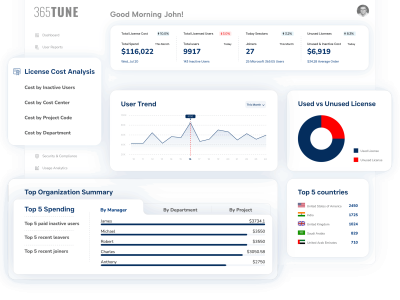
A comprehensive dashboard can show both technical metrics (licenses reclaimed, adoption rates) and financial metrics (monthly savings, cost avoidance), providing a powerful tool for communicating the value of your license management program.
Bringing It All Together: Your Microsoft 365 License Optimization Roadmap
Implementing effective license management doesn’t happen overnight, but with a structured approach, you can begin realizing savings within days and build toward a sustainable optimization program.
Here’s a practical 30-60-90 day roadmap:
First 30 Days:
- Conduct initial license inventory and utilization audit
- Identify and reclaim obvious waste (inactive users, departing employees)
- Document current license allocation by department
Days 30-60:
- Implement tiered license assignment strategy
- Create basic PowerShell reporting scripts
- Begin building automated lifecycle management connections
Days 60-90:
- Develop usage-based optimization processes
- Create financial reporting dashboards
- Establish ongoing governance and review cycles
The most successful organizations treat license management as a continuous improvement process rather than a one-time project. By systematically implementing these five strategies, you can transform your Microsoft 365 environment from a source of uncontrolled costs to a model of efficient resource utilization.
Ready to Stop Wasting Money on Unused Microsoft 365 Licenses?
Implementing effective license management strategies can deliver immediate and substantial cost savings for your organization. The five strategies we’ve outlined provide a clear path to optimizing your Microsoft 365 investment:
- Conduct thorough license utilization audits
- Implement tiered license assignment strategies
- Leverage PowerShell for advanced management and reporting
- Automate license lifecycle management
- Optimize based on actual usage patterns
But knowing what to do is only half the battle—execution is where many organizations struggle. Our specialized Microsoft 365 license management solution helps IT leaders implement these strategies quickly and effectively, with minimal effort from your team.
Want to see how much you could save? Our free License Optimization Assessment identifies your specific saving opportunities and provides a customized action plan for your organization.
Sign-up for your free account →
Schedule a 30-minute consultation with our Microsoft 365 specialists to discover how much you could save through strategic license management.
How is your organization handling Microsoft 365 license management? Share your challenges or success stories in the comments below.
Try Our Microsoft 365 License Analytics Dashboard →
About the Author: Sarah Chen is a Microsoft 365 Certified Expert with 15 years of experience helping organizations optimize their cloud investments. She has helped over 200 enterprises implement effective license management strategies, resulting in collective annual savings of more than $15 million.
References:
- Microsoft 365 Admin Center Documentation
- Microsoft 365 Usage Analytics
- PowerShell for Microsoft 365 Documentation
Last updated: May 8, 2025