
The Hidden Security Gap Costing Organizations Their Data
Your client’s Microsoft 365 environment is under attack right now. Legacy authentication protocols are being probed. Unmanaged devices are attempting access. Outdated file formats are quietly waiting to execute malicious code. Yet most Microsoft 365 consultants spend hours configuring PowerShell scripts just to implement basic security controls that should take minutes. This is exaclty why Understanding Microsoft 365 Baseline Security Mode is critical.
Here’s the reality: 99% of Microsoft 365 compromises leverage authentication vulnerabilities that Baseline Security Mode addresses directly. As a consultant managing multiple client tenants, you’re caught between the complexity of securing modern cloud environments and the urgent need to protect your clients from increasingly sophisticated threats.
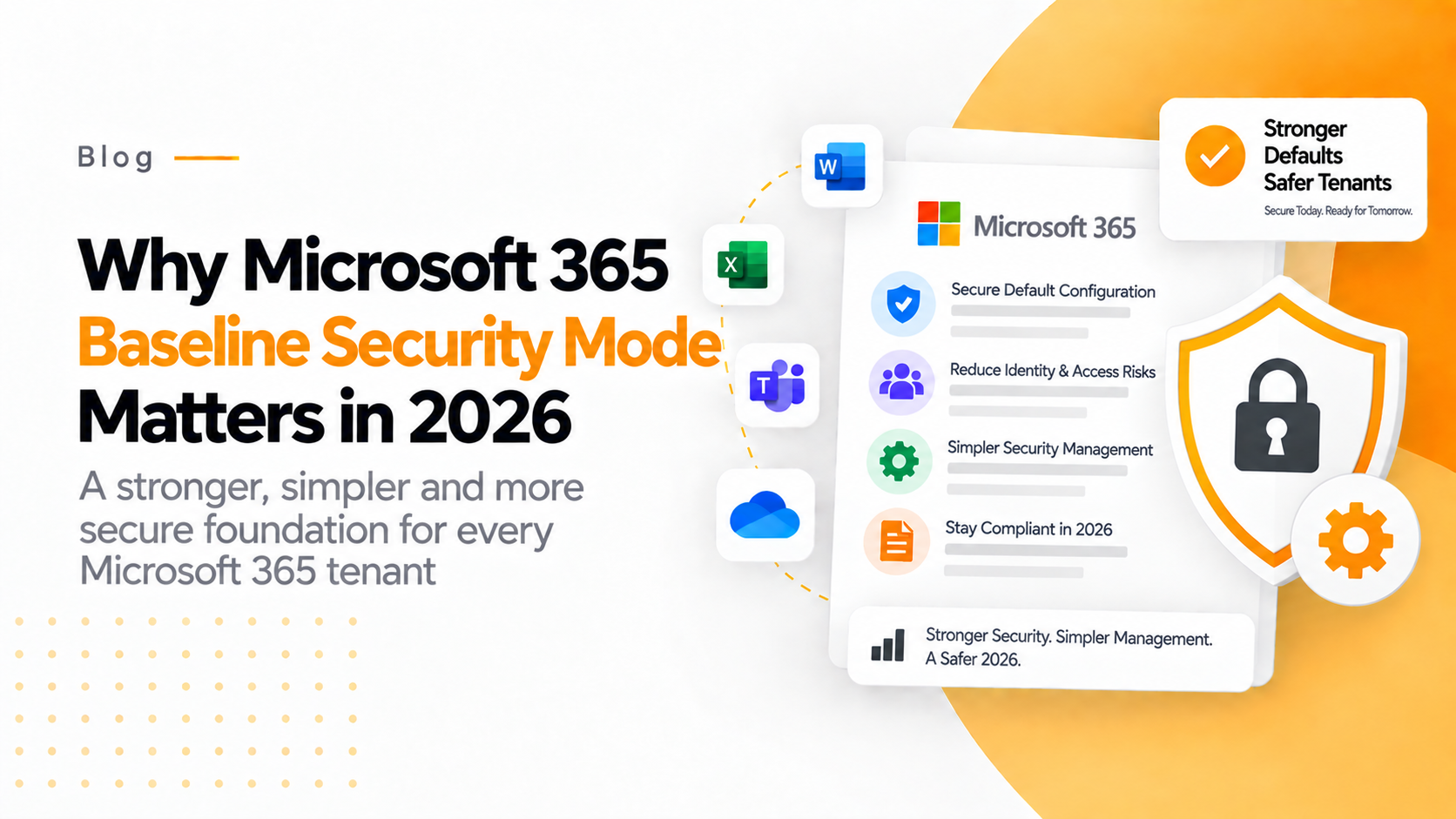
Baseline Security Mode solves this exact problem by consolidating critical security settings into a centralized admin center interface, eliminating the need for complex PowerShell configurations. This means you can protect business data, prevent disruptions, block unsafe practices, secure internal accounts, and ensure collaboration security across all your client environments in a fraction of the time.
In this guide, you’ll discover how to leverage Baseline Security Mode to deliver enterprise-grade security without the traditional complexity, what each critical setting protects against, and how to implement these controls efficiently across your client base. The shift from PowerShell to point-and-click security management changes everything about how consultants approach Microsoft 365 protection.
Why Microsoft 365 Consultants Trust Baseline Security Mode
The Microsoft 365 security landscape has fundamentally changed. According to Microsoft’s 2024 Digital Defense Report, organizations that disabled legacy authentication experienced 67% fewer account compromises compared to those still allowing outdated protocols. The problem isn’t awareness; it’s implementation complexity.
Traditional security configuration required consultants to maintain PowerShell scripts, manage multiple admin portals, and coordinate changes across Exchange Online, SharePoint, Teams, and Entra ID separately. Each setting lived in isolation, making comprehensive security audits nearly impossible. This fragmentation created gaps where threats flourish.
Microsoft recognized this challenge and introduced Baseline Security Mode directly in the Microsoft 365 admin center. This represents the first time that critical security configurations previously accessible only through PowerShell are now available through an intuitive interface. For consultants managing 10, 50, or 100+ client tenants, this consolidation delivers immediate operational efficiency.
What makes Baseline Security Mode uniquely valuable is its phased implementation approach. Before enabling any setting, you can run impact reports to identify dependencies and affected users. This visibility transforms security from a risky deployment into a calculated, evidence-based decision. When a report shows zero impact, you proceed confidently. When critical dependencies appear, you address them systematically before permanent deployment.
The platform covers authentication security, file handling protocols, collaboration controls, and device management across Microsoft 365 apps, SharePoint, OneDrive, Teams, Exchange Online, and the Entra identity platform. This comprehensive scope means one interface, one workflow, and one place to verify your entire security posture. That’s the authority consultants need to deliver consistent protection at scale.
What Security Threats Does Baseline Security Mode Actually Prevent?
Understanding the specific threats these controls mitigate helps you communicate value to clients and prioritize implementation. The authentication category alone addresses the most common attack vectors targeting Microsoft 365 environments.
Legacy authentication protocols create the largest vulnerability surface in modern Microsoft 365 deployments. These outdated methods transmit credentials without modern protection mechanisms like multi-factor authentication support. Attackers exploit this weakness through credential stuffing and password spray attacks. When you block legacy authentication flows through Baseline Security Mode, you eliminate the attack vector responsible for the majority of Microsoft 365 compromises. The setting applies across all services simultaneously, preventing the fragmented security that occurs when consultants manage protocols individually.
Phishing-resistant authentication for administrative accounts addresses targeted attacks against privileged users. Administrators manage the keys to your client’s entire environment. Traditional MFA methods remain vulnerable to sophisticated phishing techniques, but phishing-resistant authentication using FIDO2 keys or Windows Hello for Business provides cryptographic proof that can’t be intercepted or replayed. Baseline Security Mode enforces this protection specifically for admin portal access, creating a hardened perimeter around management functions.
File format vulnerabilities represent silent security threats that traditional antivirus solutions often miss. Ancient legacy formats and old document types contain memory corruption vulnerabilities that attackers weaponize through malicious files. When users open these documents, embedded exploits execute without warning. Baseline Security Mode addresses this by opening vulnerable formats in Protected View, creating an isolated environment where malicious code can’t reach the system. For ancient legacy formats, editing is completely disabled. For old legacy formats, users can edit after acknowledging the security implications. This layered approach balances security with business functionality.
Dynamic Data Exchange (DDE) attacks deserve special attention. This Excel feature allows real-time data connections to external sources, but attackers abuse it to inject commands without requiring macros. The technique bypasses traditional macro security controls because users don’t see obvious execution warnings. Blocking DDE server launches through Baseline Security Mode closes this sophisticated attack vector that appears in targeted campaigns against finance and accounting teams.
ActiveX controls, OLE objects, and legacy SharePoint custom scripts all share a common characteristic: they were designed before modern security standards existed. Each represents elevated attack surface that modern alternatives handle more securely. Baseline Security Mode blocks these legacy technologies by default while directing users toward current frameworks like the SharePoint Framework for custom functionality.
The Exchange Web Services (EWS) setting addresses a particularly sensitive area. EWS provides programmatic access to emails, meetings, and contacts—the most valuable data in most organizations. When compromised, attackers can exfiltrate confidential information, send convincing phishing emails from legitimate accounts, or maintain persistent access through calendar backdoors. Disabling organization-wide EWS access reduces this attack surface while Microsoft transitions functionality to modern REST APIs. The trade-off requires careful evaluation, but for most environments, the security benefit outweighs the compatibility considerations.
How to Implement Baseline Security Mode Without Disrupting Operations
The implementation methodology determines success. Consultants who approach Baseline Security Mode as an all-or-nothing deployment create unnecessary risk. The platform’s design supports incremental adoption that aligns with each client’s operational reality.
Start with impact analysis for each individual setting. Navigate to Settings > Org Settings > Security & Privacy > Baseline Security Mode in the Microsoft 365 admin center. The interface displays all available controls grouped by category: Authentication, Files, and Room Devices. For each setting, run the impact report before making changes. This report identifies which users or services currently rely on the functionality you’re about to restrict.
Settings showing zero impact represent your immediate deployment candidates. These controls protect against threats that your environment isn’t currently using vulnerable features to address. Deploy these first to establish quick security wins without operational friction. Document each setting enabled and the zero-impact status for client reporting.
For settings showing user impact, the analysis phase begins. Review which specific users or applications trigger the dependency. Distinguish between critical business processes and legacy usage that can be replaced. For example, if the EWS impact report shows an old third-party email archiving tool, you can plan migration to a modern Graph API-based solution before disabling EWS. If it shows critical business automation, you schedule the update according to the application vendor’s REST API support timeline.
The phased rollout approach leverages Baseline Security Mode’s flexibility. You can enable a setting, monitor for 48-72 hours, then disable it if unexpected issues emerge. This experimentation window allows real-world validation before permanent deployment. Some consultants deploy to pilot groups first using conditional access exclusions for specific users, then expand to full tenant coverage after validation.
Role-based access control (RBAC) support means you don’t need Global Administrator rights for every setting. SharePoint administrators can manage SharePoint-specific controls. Exchange administrators handle Exchange settings. Teams administrators configure Room Device policies. This delegation enables specialized team members to implement security within their domain expertise while Global Administrators maintain oversight through the unified interface.
For MSPs managing multiple client tenants, template the deployment sequence. Create a standard implementation checklist that starts with universally safe settings (blocking legacy authentication, ancient file formats in Protected View, ActiveX controls), progresses to settings requiring client-specific validation (EWS, custom scripts, Teams resource accounts), and concludes with user communication and training. This systematic approach delivers consistent security postures across your client base while respecting each organization’s unique application dependencies.
Why 365TUNE Makes Baseline Security Mode Implementation Even Faster
The difference between understanding Baseline Security Mode conceptually and implementing it successfully across client tenants comes down to operational tooling. While Microsoft provides the security settings, consultants need visibility, documentation, and compliance verification that extends beyond the basic admin interface.
365TUNE addresses the implementation gap that prevents many consultants from achieving comprehensive Baseline Security Mode deployment. Traditional implementation requires manual documentation of each setting’s status, impact report results, and deployment timeline across every client tenant. This documentation burden becomes overwhelming at scale, leading to inconsistent security postures where some clients receive full protection while others operate with partial configurations.
The platform provides automated tenant scanning that identifies current Baseline Security Mode status, compliance gaps, and security risks in a unified dashboard. Instead of logging into each client’s admin center individually, you gain consolidated visibility across your entire client portfolio. This centralization transforms security management from a reactive, tenant-by-tenant process into a proactive, portfolio-wide operation.
What typically takes 2-3 hours of manual PowerShell configuration and verification per tenant becomes a few clicks with proper tooling. The impact extends beyond time savings—it ensures consistency. Every client receives the same systematic evaluation, the same impact analysis, and the same deployment validation. This standardization protects against the configuration drift that inevitably occurs when managing security settings manually across dozens of environments.
Reporting capabilities demonstrate value to clients with evidence-based security metrics. When you can show a client their exact security posture score, which specific controls protect them, and how their configuration compares to industry benchmarks, you’re delivering consultant-level value rather than administrator-level task completion. This elevation in service offering strengthens client relationships and justifies premium pricing.
The integration with CIS Microsoft 365 Foundations Benchmark automation means Baseline Security Mode implementation feeds directly into comprehensive compliance frameworks. Clients asking about compliance status receive detailed reports showing control implementation, remediation timelines, and continuous monitoring results. This compliance automation separates leading consultants from those still managing spreadsheets and manual audits.
Addressing Common Concerns About Baseline Security Mode
Despite clear security benefits, consultants encounter legitimate objections when proposing Baseline Security Mode to clients. Understanding and addressing these concerns upfront accelerates adoption.
“Won’t this break our existing applications?” This concern reflects valid caution, but Baseline Security Mode’s impact analysis specifically prevents this scenario. The platform shows exactly which applications and users depend on each setting before you make changes. For EWS specifically, Microsoft provides clear build requirements: Current Channel already supports REST API alternatives, Monthly Enterprise Channel achieves compatibility in October 2025, and Semi-Annual Channel reaches parity in January 2026. By running impact reports and timing deployment with Microsoft’s rollout schedule, you ensure compatibility without disrupting existing workflows.
“We need custom SharePoint solutions that require script access.” This objection reveals a deeper opportunity for modernization. Legacy custom scripts represent technical debt that creates security vulnerabilities and maintenance overhead. Baseline Security Mode’s recommendation to block new custom scripts pushes organizations toward the SharePoint Framework, which provides better security, supportability, and future-proofing. Frame this as eliminating technical debt while improving security, not as removing functionality. For organizations with extensive legacy scripts, plan the migration incrementally while blocking new script creation immediately to prevent expanding the legacy footprint.
“Our business requires Teams Room devices to access SharePoint files during meetings.” This legitimate business need conflicts with security best practices that prevent resource accounts from accessing files. The solution involves architectural changes where meeting content lives in specific SharePoint sites with direct access permissions rather than relying on resource account file access. This separation of concerns actually improves governance by making content permissions explicit rather than inherited through service accounts. Implementation requires planning, but the security benefit of preventing resource account abuse justifies the effort.
Each objection represents an opportunity to demonstrate consultant expertise. Rather than immediately conceding to client concerns, explore the underlying business requirement, present security-conscious alternatives, and guide clients toward modern architectures that don’t compromise protection for convenience.
Your Next Steps: From Security Awareness to Implementation
The gap between understanding Baseline Security Mode and securing your client environments requires deliberate action. Start with a single client tenant as a pilot implementation. Choose a client with relatively simple infrastructure and strong security awareness to maximize early success.
Run comprehensive impact reports across all Baseline Security Mode settings for this pilot tenant. Document zero-impact settings and deploy them immediately to establish momentum. For settings showing dependencies, create a remediation plan with specific timelines for addressing each dependency. This documentation becomes your template for subsequent client deployments.
Schedule follow-up reviews 30 days after initial deployment to verify stability and identify any unforeseen impacts. This validation period builds confidence in your process and provides evidence-based results you can share with other clients. Successful pilot implementations create reference clients who advocate for your security recommendations to peer organizations.
Consider how automated tooling like 365TUNE can accelerate this deployment process across your entire client base. When you’re managing security for 20, 50, or 100+ tenants, manual implementation becomes unsustainable. The right platform transforms Baseline Security Mode from a time-intensive project into a systematic security upgrade that protects all your clients consistently.
The security landscape won’t wait for perfect planning. Every day without Baseline Security Mode implementation is another day your clients remain vulnerable to attacks that these controls prevent. Legacy authentication exploits, file format vulnerabilities, and application compromise techniques continue targeting Microsoft 365 environments actively.
What specific security setting will you enable first in your pilot tenant? Start there, document the process, and build the systematic approach that scales across your entire practice.
Ready to simplify Baseline Security Mode implementation across all your clients? 365TUNE provides automated tenant scanning, comprehensive compliance reporting, and one-click security deployments that help MSPs and consultants deliver enterprise-grade protection efficiently. Learn how 365TUNE streamlines Microsoft 365 security management.